

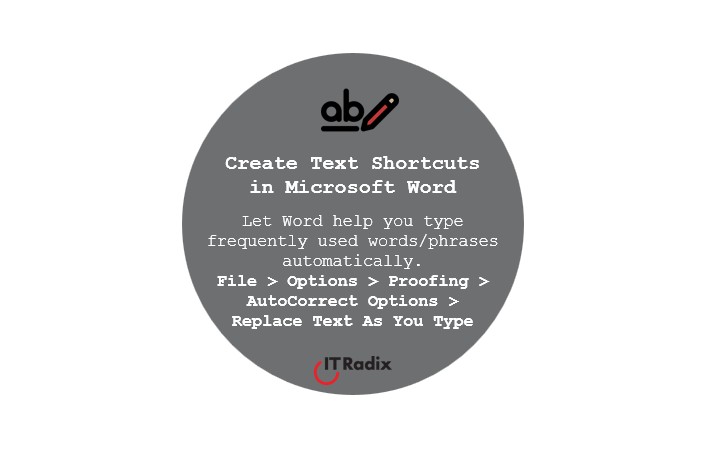
Create Text Shortcuts in Microsoft Word
Tired of typing the same information over and over? Let Microsoft Word do the heavy lifting. With AutoCorrect, you can create simple text shortcuts that expand automatically. For example, typing “addr” can instantly turn into your full office address. It’s a small tweak that saves time and cuts down on typos.
To set it up, go to:
File > Options > Proofing > AutoCorrect Options > Replace Text As You Type
and make sure Replace text as you type is enabled.
Add addr as the shortcut and paste in your full address, click OK, and you’re all set—fewer keystrokes and a smoother workflow.
As always, if you have any questions, contact us! We’re here to help make IT work for you!